In this short guide we are going to look at how we can order a Virtual Number from Megacall and also verify it in the Megadialer so that we can make and receive calls.
1. Ordering the DID Number
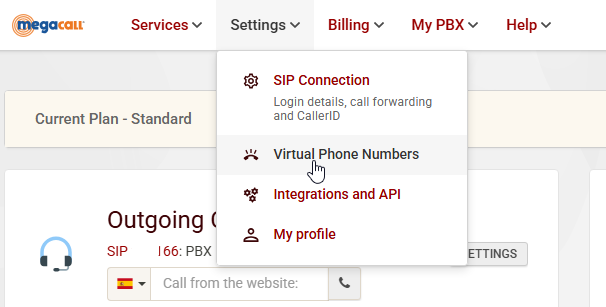
The first step is to purchase the DID number of our choice, we need to go to https://my.megacall.es and from there we need to click on Settings > Virtual Phone Numbers
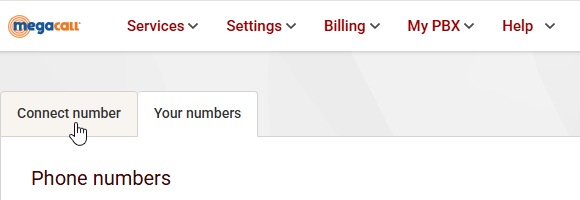
We then need to cick on "Connect Number"
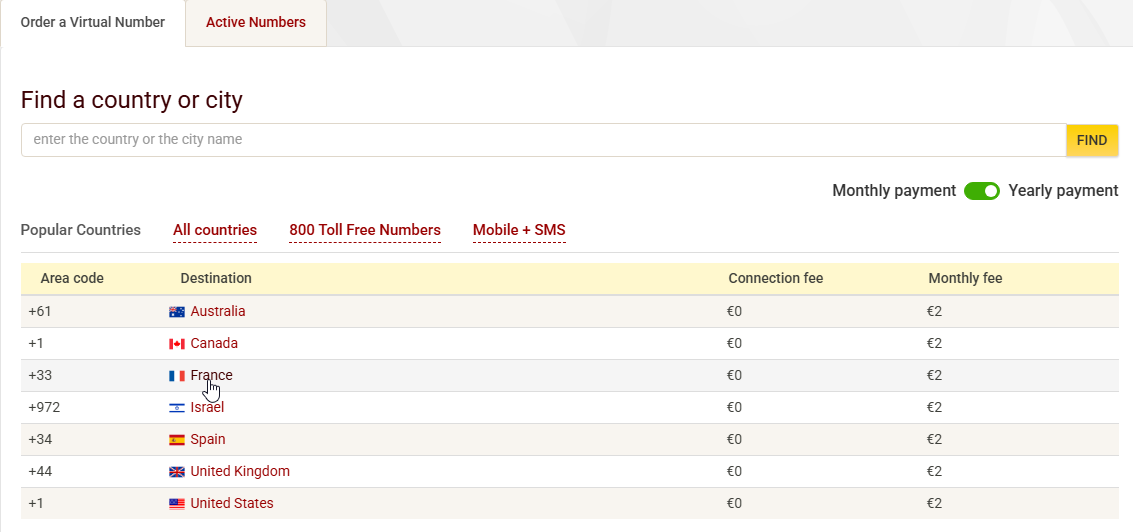
We then need to search for the country where we would like the Virtual Number from. In this example we will choose France. We can see the costs for Yearly and Monthly payment, Yearly would work out more economical than Monthly and would require that you pay the year up-front.
For French numbers we can see that we have various regions available, we can also see that most regions have a number next to them, this indicates the required documentation.

We can see the required documentation in a summary at the bottom of each page...

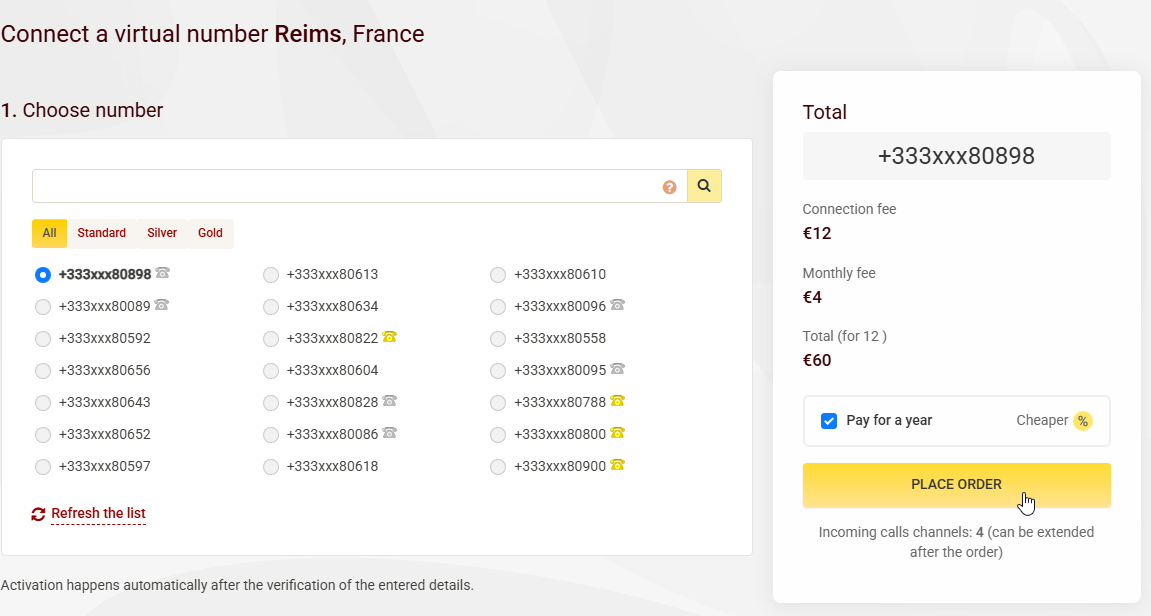
Once we select the region we will be taken to a page where we can choose the number we would like, there are various option such as Standard, Silver and Gold, these are indicated by the presence of a telephone. Standard numbers have no telephone icon next to them and are more economical. Once we have selected the number of choice we just click on "Place order" to place the order.
***Please note: Verification can take between 24 and 48 hours.***
2. Verifying the number in Megadialer
Now we need to verify the number in Megadialer, first of all we need to point the DID number to Megadialer, for this we need to go to Settings > Virtual Phone Numbers
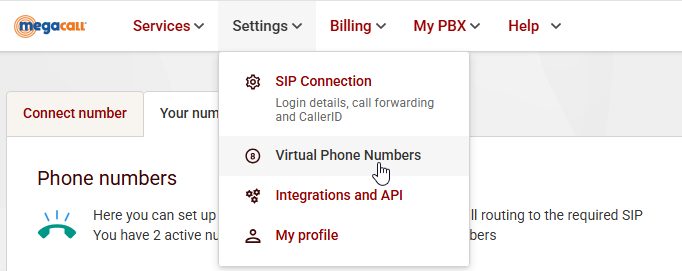
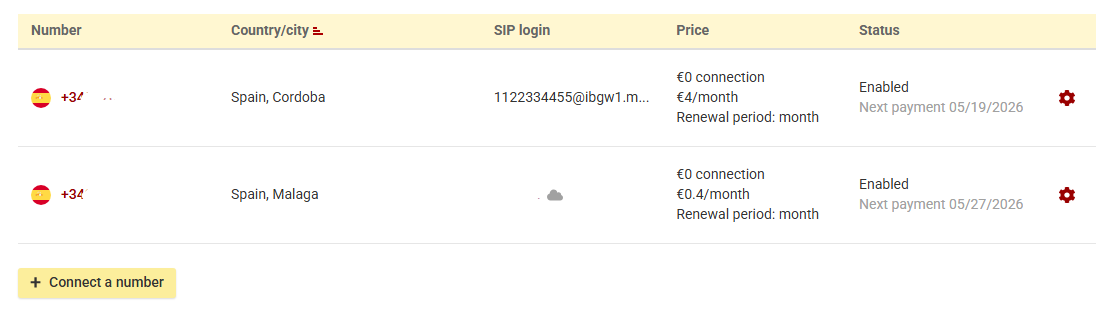
We will now see the number we just purchased, we need to click on the red text under "SIP login"
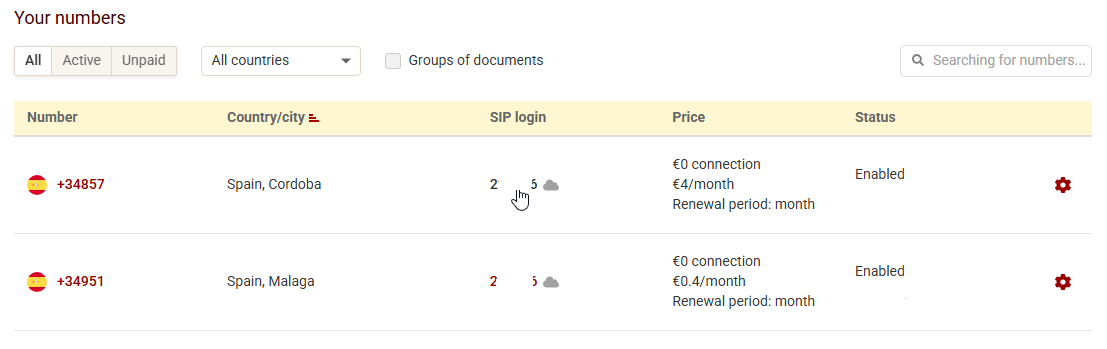
A popup will appear where we need to click on "External Server"
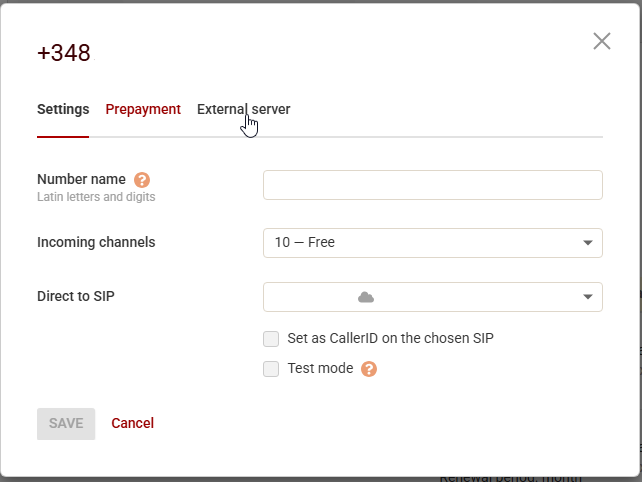
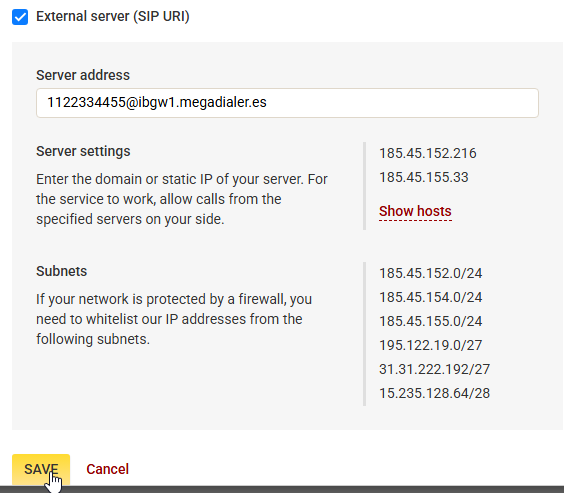
Then we need to click on the checkbox "External server (SIP URI)"
Now we need to add the Server address, this needs to be in the format {number}@ibgw1.megadialer.es, we can see an example screenshot below... Once done we need to click on Save
We will now see that the change has been reflected....
3. Add Number to Megadialer
Now we need to add the number to Megadialer, for this we need to click on "Phone Numbers" on the left hand menu....

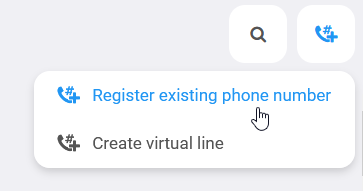
Then in the top right hand corner we need to click on the add phone number icon and then select "Register existing phone number"
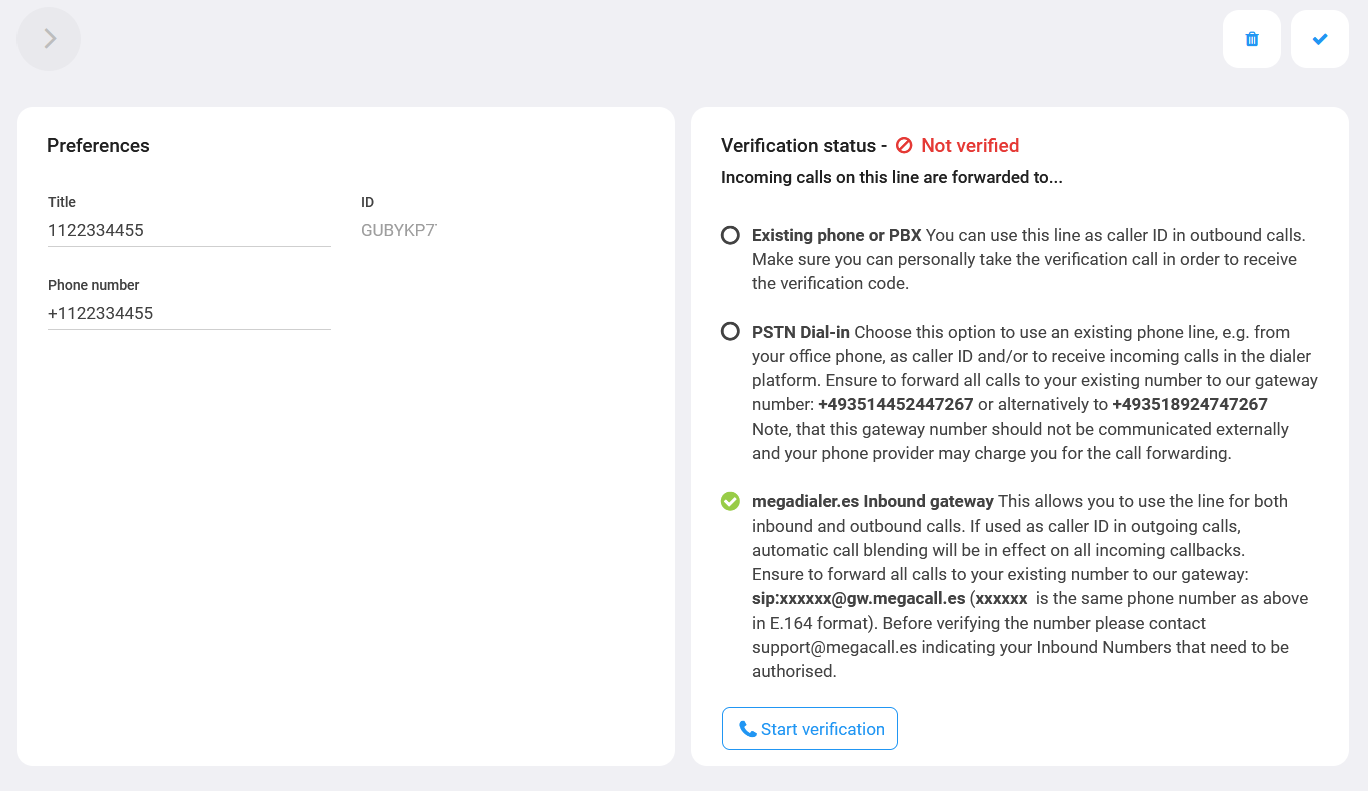
We now need to add a title for the line we are adding, this can be an internal reference or the number itself. In the Phone number section we need to add the number with the leading "+". Once done we would recommend clicking on the tick in the top right corner to save the settings.
Last but not least you will need to click on the "Start verification" button, this will initiate a call to the new number, which should then arrive in the platform. You should see a green message once the number has been verified.
This concludes the guide for purchasing and verifying numbers for Megadialer.
Was this article helpful?
That’s Great!
Thank you for your feedback
Sorry! We couldn't be helpful
Thank you for your feedback
Feedback sent
We appreciate your effort and will try to fix the article